Person Pose Detection ML Application
Description
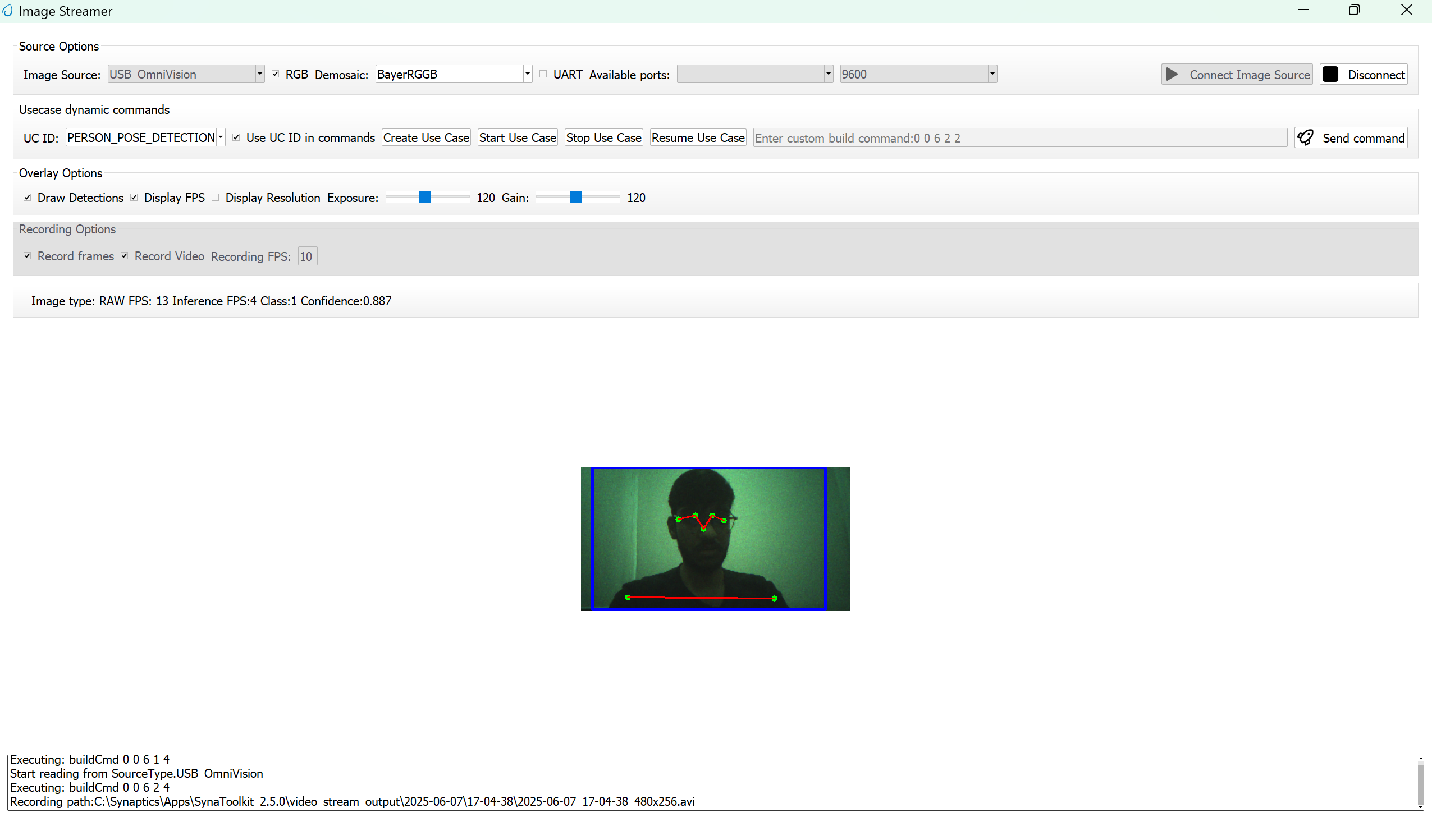
The UC Person Pose Detection application detects individuals in the camera’s field of view by generating bounding boxes and identifying 17 keypoints for each person, corresponding to various body parts. Each keypoint is accompanied by a confidence score that indicates the reliability of the detection, enabling accurate estimation of the person’s pose. This example supports both WQVGA(480x270) and VGA(640x480) resolutions.
Build Instructions
Prerequisites
Configuration and Build Steps
Select Default Configuration
make cm55_person_pose_detection_defconfigThis configuration uses WQVGA resolution by default.
Optional Configuration:
💡Tip: Run
make menuconfigto modify the configuration via a GUI.Configuration
Menu Navigation
Action
VGA Resolution
COMPONENTS CONFIGURATION → Off Chip Components → Display ResolutionChange to
VGA(640x480)WQVGA in LP Sense
COMPONENTS CONFIGURATION → DriversEnable
MODULE_LP_SENSE_ENABLEDStatic Image
COMPONENTS CONFIGURATION → Off Chip ComponentsDisable
MODULE_IMAGE_SENSOR_ENABLEDBuild the Application The build process will generate the required
.elfor.axffiles for deployment.make build or make
Deployment and Execution
Setup and Flashing
Open the VSCode Astra SRSDK Extension and connect to the Debug IC USB port on the Astra Machina Micro Kit. For detailed steps refer to the Quick Start Kit.
Generate Binary Files
FW Binary generation
Navigate to AXF/ELF TO BIN → Bin Conversion in Astra SRSDK VSCode Extension
Load the generated
sr110_cm55_fw.elforsr110_cm55_fw.axffileClick Run Image Generator to create the binary files
Refer to Astra SRSDK VSCode Extension User Guide.
Model Binary generation (to place the Model in Flash)
To generate
.binfile for TFLite models, please refer to the Vela compilation guide.
Flash the Application
To flash the application:
Navigate to IMAGE LOADING in the Astra SRSDK VSCode Extension.
Select SWD/JTAG as the service type.
Choose the respective image bins and click Flash Execute.
For WQVGA resolution:
Flash the generated
B0_flash_full_image_GD25LE128_67Mhz_secured.binfile directly to the device. Note: Model weights is placed in SRAM.
For VGA resolution:
Flash the pre-generated model binary:
person_pose_detection_flash(448x640).bin. Due to memory constraints, need to burn the Model weights to Flash.Location:
examples/vision_examples/uc_person_pose_detection/models/Flash address:
0x629000Calculation Note: Flash address is determined by the sum of the
host_imagesize and theimage_offset_SDK_image_B_offset(parameter, which is defined withinNVM_data.json). It’s crucial that the resulting address is aligned to a sector boundary (a multiple of 4096 bytes).This calculated resulting address should then be assigned to theimage_offset_Model_A_offsetmacro in yourNVM_data.jsonfile.
Flash the generated
B0_flash_full_image_GD25LE128_67Mhz_secured.binfile
Refer to the Astra SRSDK VSCode Extension User Guide for detailed instructions on flashing.
Device Reset Reset the target device after flashing is complete.
Note:
The placement of the model (in SRAM or FLASH) is determined by its memory requirements. Models that exceed the available SRAM capacity, considering factors like their weights and the necessary tensor arena for inference, will be stored in FLASH.
Running the Application
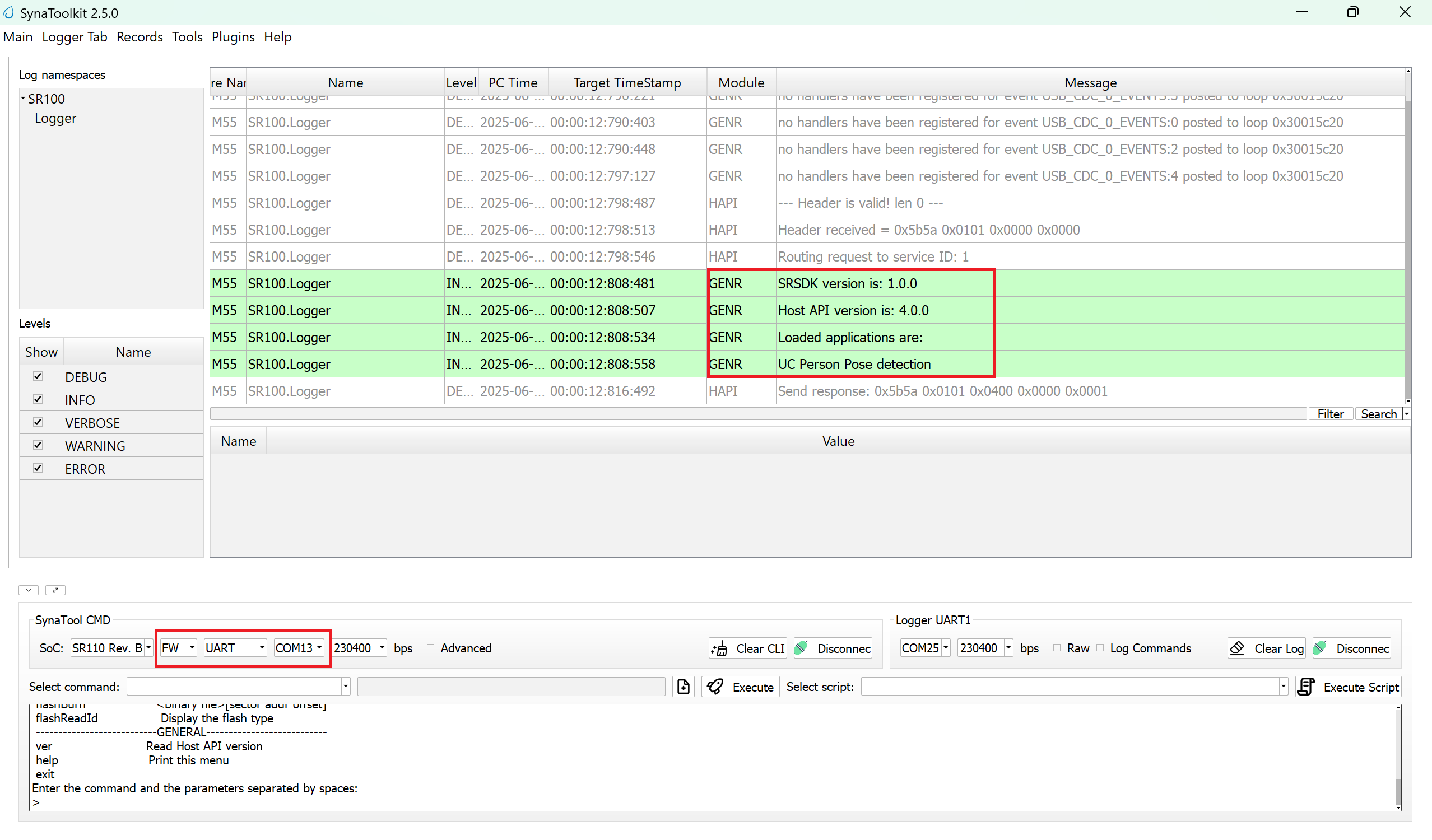
Open SynaToolkit_2.5.0
Before running the application, make sure to connect a USB cable to the Application SR110 USB port on the Astra Machina Micro board and then press the reset button
Connect to the newly enumerated COM port
For logging output, connect to DAP logger port

The example logs will then appear in the logger window.
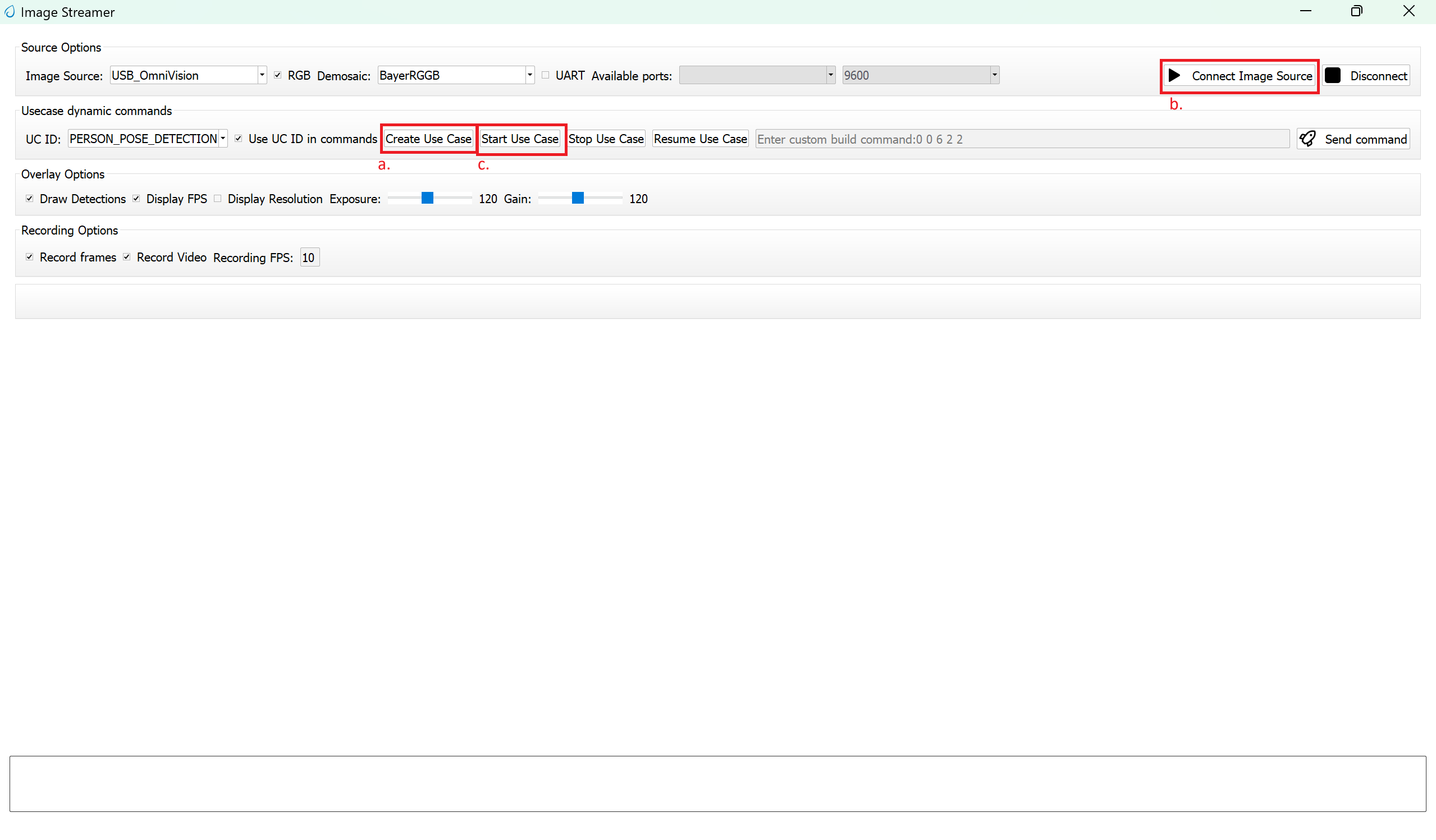
Next, navigate to Tools → Video Streamer in SynaToolkit to run the application.
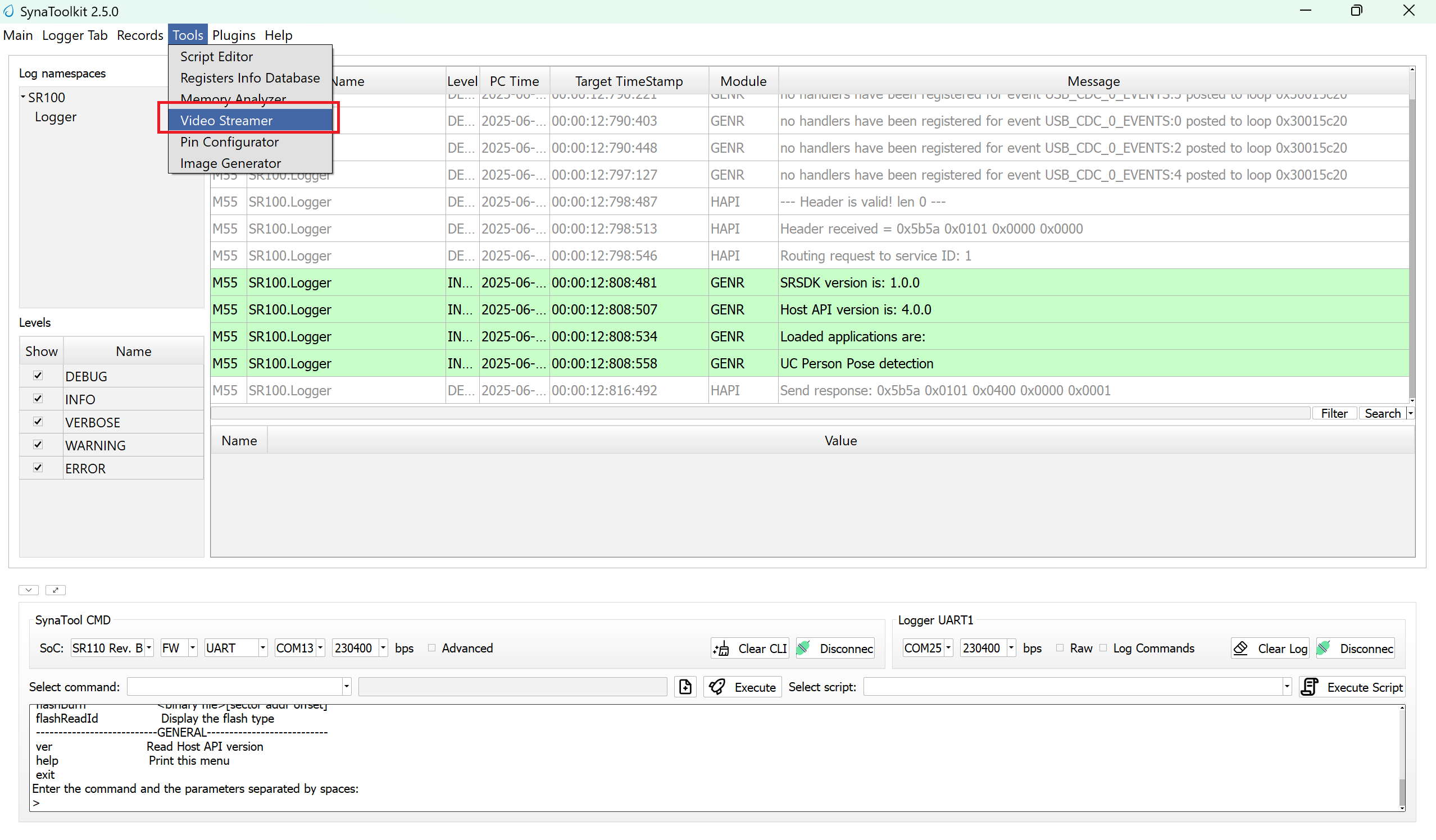
Video Streamer
Configure the following settings:
UC ID: PERSON_POSE_DETECTION
RGB Demosaic: BayerRGGB
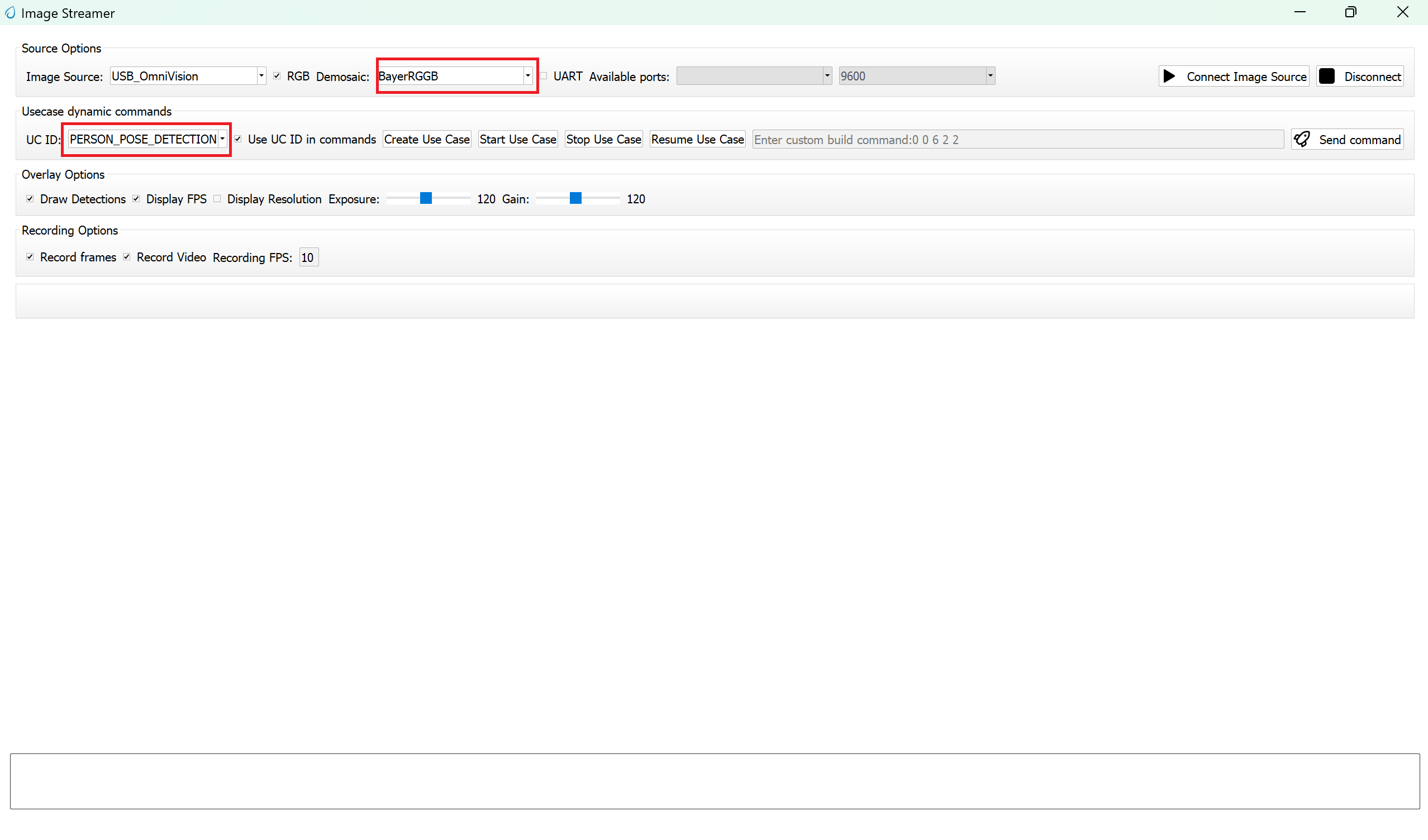
Click Create Usecase
Connect the image source
Click Start Usecase to begin real-time pose_detection
After starting the use case, Person pose detection will begin streaming video as shown below.