Doorbell ML Application
Overview
The Doorbell sample application integrates the UC_JPEG_PREROLL and IMAGE_STITCHING use cases to detect a person within the camera’s field of view and capture high-resolution Full HD (FHD) images upon detection.
Image Delivery Options
Captured images can be delivered in two ways:
Delivery Mode |
Description |
Tools for Visualization |
|---|---|---|
USB CDC (to Host PC) |
Sends images via USB CDC to a host PC. |
SynaToolkit, VS Code Extension |
SPI to Controller |
Sends images over SPI to another Astra Machina Eval Kit acting as a controller; receives frames for logging. |
Logger |
Build Instructions
Prerequisites
Build Options
Method |
Steps |
Notes |
|---|---|---|
VS Code Extension |
Import SDK → Build or Clean SDK in “Imported Repos” → select configs (Application, Board, Compiler) → Build |
GUI workflow; logs appear in VS Code terminal. |
Native CLI |
Run |
Suitable for native builds |
Native Configuration and Build Steps
Select Default Configuration
make cm55_doorbell_defconfigThis configuration uses CONFIG_WAKEUP_TRIGGER set to 1 (Timer-based wakeup).
Configure WAKEUP_TRIGGER Navigate to:
uc_jpeg_preroll.cchange to CONFIG_WAKEUP_TRIGGER set to 2 for (GPIO-based wakeup)Build the Application The build process will generate the required
.elfor.axffiles for deployment.make build or make
Deployment and Execution
Setup and Flashing
Open the Astra SRSDK VSCode Extension and connect to the Debug IC USB port on the Astra Machina Micro Kit. For detailed steps refer to the Quick Start Kit.
Generate Binary Files
FW Binary generation
Navigate to AXF/ELF TO BIN → Bin Conversion in Astra SRSDK VSCode Extension
Load the generated
sr110_cm55_fw.elforsr110_cm55_fw.axffileClick Run Image Generator to create the binary files
Refer to Astra SRSDK VSCode Extension User Guide.
Model Binary generation (to place the Model in Flash)
To generate
.binfile for TFLite models, please refer to the Vela compilation guide.
Flash the Application
To flash the application:
Navigate to IMAGE LOADING in the Astra SRSDK VSCode Extension.
Select SWD/JTAG as the service type.
Choose the respective image bins and click Flash Execute.
Flash the pre-generated model binary:
door_bell_flash(384x512).bin. Due to memory constraints, need to burn the Model weights to Flash.Location:
examples/vision_examples/uc_jpeg_preroll/models/Flash address:
0x629000Calculation Note: Flash address is determined by the sum of the
host_imagesize and theimage_offset_SDK_image_B_offset(parameter, which is defined withinNVM_data.json). It’s crucial that the resulting address is aligned to a sector boundary (a multiple of 4096 bytes).This calculated resulting address should then be assigned to theimage_offset_Model_A_offsetmacro in yourNVM_data.jsonfile.
Flash the generated
B0_flash_full_image_GD25LE128_67Mhz_secured.binfile.
Refer to the Astra SRSDK VSCode Extension User Guide for detailed instructions on flashing.
Note:
The placement of the model (in SRAM or FLASH) is determined by its memory requirements. Models that exceed the available SRAM capacity, considering factors like their weights and the necessary tensor arena for inference, will be stored in FLASH.
Running the Application
Options
Method |
Steps |
|---|---|
SynaToolkit |
Open Toolkit → Connect USB (SR110 App port) → Press Reset → View logs on DAP port |
VS Code Extension |
Open |
💡 You can find detailed setup and usage instructions in the Astra SRSDK VSCode Extension User Guide.
Initial Setup
Press
RSTNbutton onSR110_RDK.
Operation Flow
On detection → frame is streamed → device enters hibernation.
Wakeup Triggers
Trigger |
Config |
Behavior |
|---|---|---|
Timer |
|
Device wakes every 10 seconds. |
GPIO |
|
Jumper from GND → UART0 RX after 10s of hibernation. |
SPI Pre-roll Use Case
Overview
The SPI Pre-roll feature enables UC_JPEG_PREROLL to capture JPEG pre-roll frames and stream them to a controller (receiver) over SPI.
Peripheral (Sender): The device that’s flashed with UC_JPEG_PREROLL acts as the SPI Peripheral device, that captures frames, packages them with headers/footers, and transmits them via SPI.
Controller (Receiver): The device that’s flashed with SPI_SAMPLE_APP acts as the SPI Controller device, that requests pre-roll frames, and validates CRC.
This mechanism ensures that when detection is triggered, the system can send pre-roll images that occurred before the detection event.
The SPI Pre-roll transfer follows a protocol as described in SPI Pre-roll Protocol
Configurations
Peripheral (Sender) Configurations
Run the Doorbell defconfig to apply the default settings for the doorbell use case. Enable SPI module by enabling MODULE_SPI_ENABLED and build the image. With the settings, the device will operate as the SPI pre-roll Peripheral (Sender).
make cm55_doorbell_defconfig
make menuconfig #Enable SPI and LOGGER_IF_UART_0
make
Remember enable LOGGER_IF_UART_0 before building the peripheral image with LOGGER_IF_UART_0 in the menuconfig.
Controller (Receiver) Configurations
Run the SPI Sample App defconfig to apply the default settings for the SPI Sample application.
Enable SPI_PREROLL_TRANSFER in spi_sample_app.c and SPI_DOUBLE_BOARD_MODE
in spi_sample_app.h and build the image.
With these settings, the device will operate as the SPI pre-roll Controller (Receiver).
make cm55_spi_sample_app_defconfig
make
Hardware Setup
The following are the pins that are used for SPI Communication,
Controller Pins
Pin 11 - SPI_MSTR_CLK (GPIO_22)
Pin 12 - SPI_MSTR_CS (GPIO_21)
Pin 13 - SPI_MSTR_MISO (GPIO_24)
Pin 14 - SPI_MSTR_MOSI (GPIO_23)
Peripheral Pins
Pin 7 - SPI_SLV_CLK (GPIO_6)
pin 8 - SPI_SLC_CS (GPIO_8)
pin 9 - SPI_SLV_MISO (GPIO_7)
pin 10 - SPI_SLV_MOSI (GPIO_9)
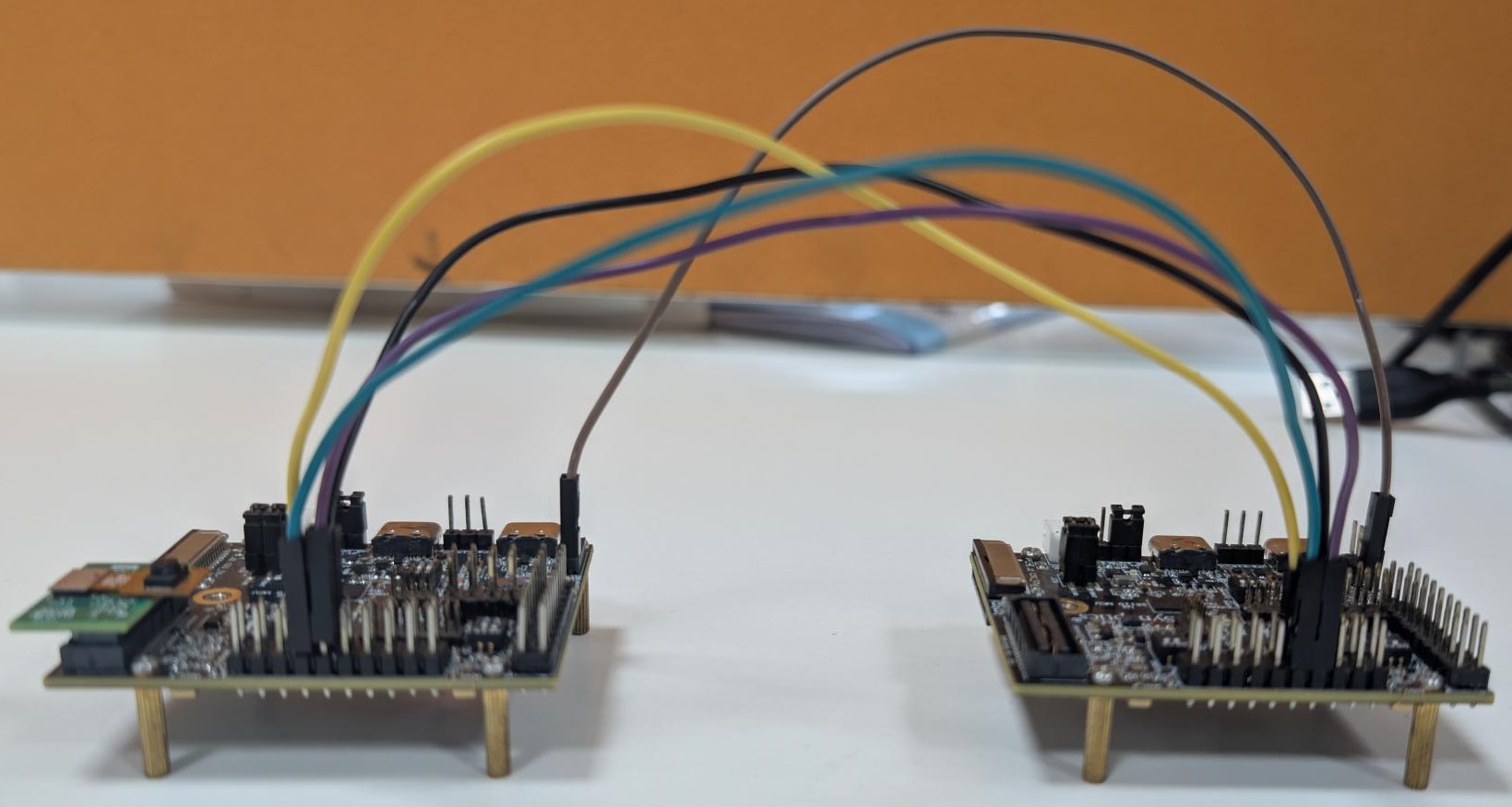
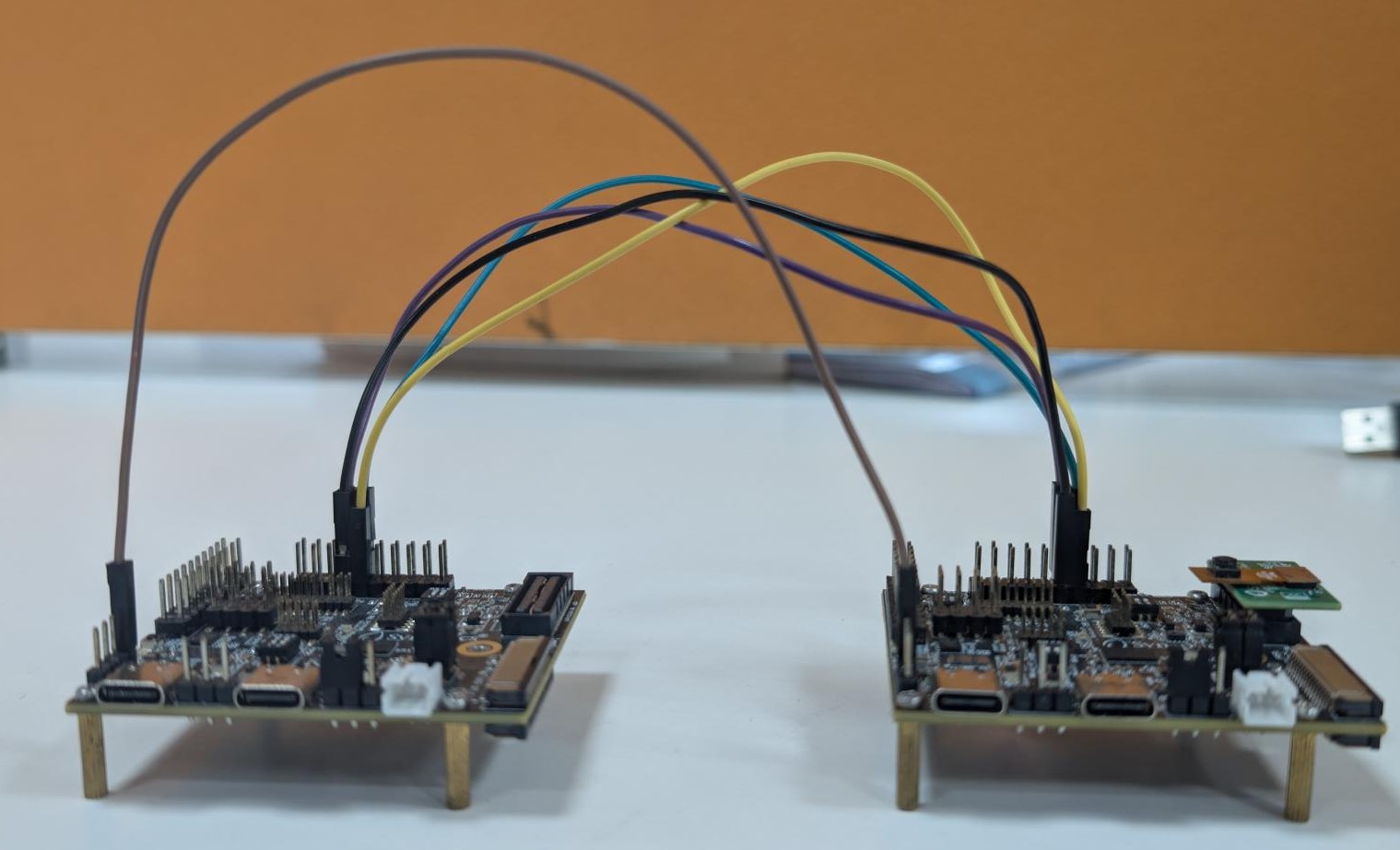
Connections
Pin 11 (SPI_MSTR_CLK) → Pin 7 (SPI_SLV_CLK)
Pin 12 (SPI_MSTR_CS) → Pin 8 (SPI_SLV_CS)
Pin 13 (SPI_MSTR_MISO) → Pin 9 (SPI_SLV_MISO)
Pin 14 (SPI_MSTR_MOSI) → Pin 10 (SPI_SLV_MOSI)
Remember, The logs will be seen via UART 0. Enable UART 0 log via menuconfig. It is recommended to have the DAP SR110 not powered up because of SPI pin conflict in RDK.
Connection Images
Test Procedure
The test can begin once the images are built, flashed onto the respective devices, and the hardware setup is completed. The pins described above represent the required SPI connections. In addition, the Ground lines of both boards must be connected to ensure a stable link. Failure to do so may result in corrupted or invalid data.
Peripheral (Sender) Steps
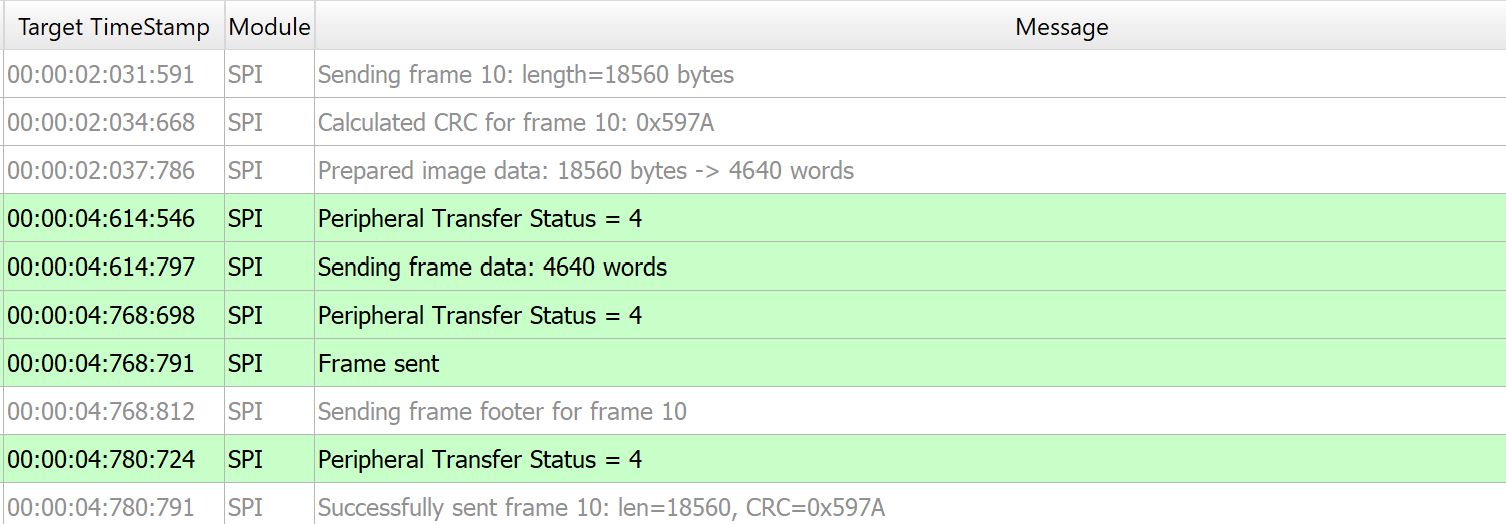
Before flashing the Peripheral image, the model binary must first be loaded at address 0x629000. Once the model is loaded, flash the Peripheral image and reset the device. On reset, the device enters hibernation and capture pre-roll images. Once the device wakes up from hibernation and if detection events are seen, It will initiate the SPI Peripheral Transfer to stream the captured pre-roll images.

Controller (Receiver) Steps
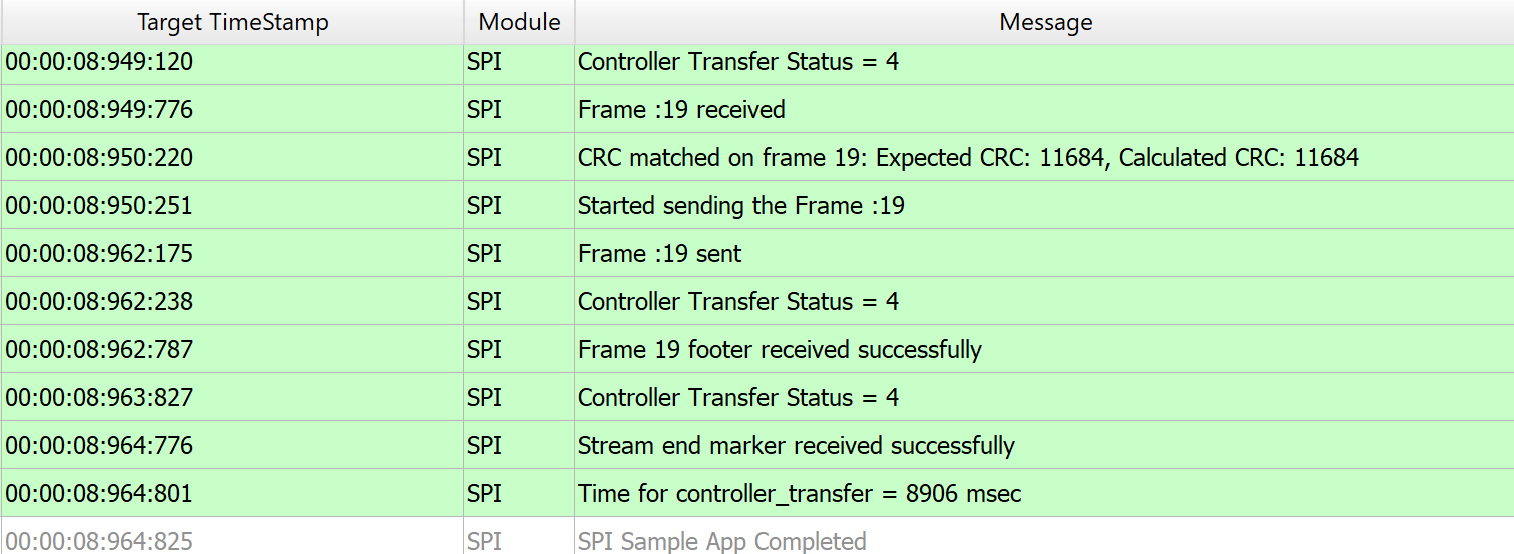
Flash the Controller image, but reset the controller device only after the peripheral wakes up from hibernation and begins the peripheral transfer. This ensures that the peripheral is ready to accept the pre-roll request and related commands from the controller.

Expected Results
Controller initiates the transfer by sending a pre-roll request header. Peripheral responds with the stream header, all pre-roll JPEG frames, and the stream end marker over SPI. Controller successfully receives and validates each frame, including headers, CRC, and footers. We can confirm successful reception of pre-roll frames with logs.