SL2610 Build and Flash with VS Code
This document provides concise, VS Code-only steps to build, generate images, and flash SL2610 applications. For common extension features (installation, tools, SDK import, logging, memory analysis), see Astra MCU SDK VS Code Extension User Guide.
Throughout this guide, <sdk-root> refers to the directory where you extracted or cloned the SDK.
Table of Contents
Prerequisites
Development on SL2610 requires Linux. Windows users should run VS Code in Ubuntu 22.04 via WSL; see Astra MCU SDK - WSL User Guide. macOS support is planned for a future release.
SL2610 RDK connected with 5V USB-C power (PWR_IN) and USB 2.0 OTG to the host.
Ensure hardware connections are set up per the SL2610 Platform Guide.
VS Code extension and tools installed. See Setup and Install SDK using VS Code.
Build and Deploy Flow
The Build and Deploy view allows running each step one at a time or sequentially.
If you check Build Configurations, Image Generation (SL2610), and Image Flashing (SL2610), all three operations run sequentially. Each step automatically fills in required information for the next step, such as the .elf file or sub-image path.
You may also run each step one at a time if desired.
The steps do not run until the Run button at the bottom of the view is pressed.
Environment Setup
Ensure the current working directory is the
<sdk-root>/examplesfolder. Select this via the Import Application/Example view.Set the workspace
SRSDK_DIRto<sdk-root>via the Import SDK view so the Build UI can detect the SDK.Open the Build and Deploy view in the Synaptics extension and set
Device→SL2610.
Build Configurations (SL2610)
Purpose: Generate .elf for SL2610 CM52 firmware.
Steps:
Set Build Toolchain to
GCC.13.2.1Select desired Application from dropdown
Enable the desired Build and Clean checkboxes
Build (SDK + App) builds and installs the SDK and builds the application.
Build App builds the application only and relies on previously installed SDK.
Notes:
SL2610 builds only support Release mode from the extension UI.
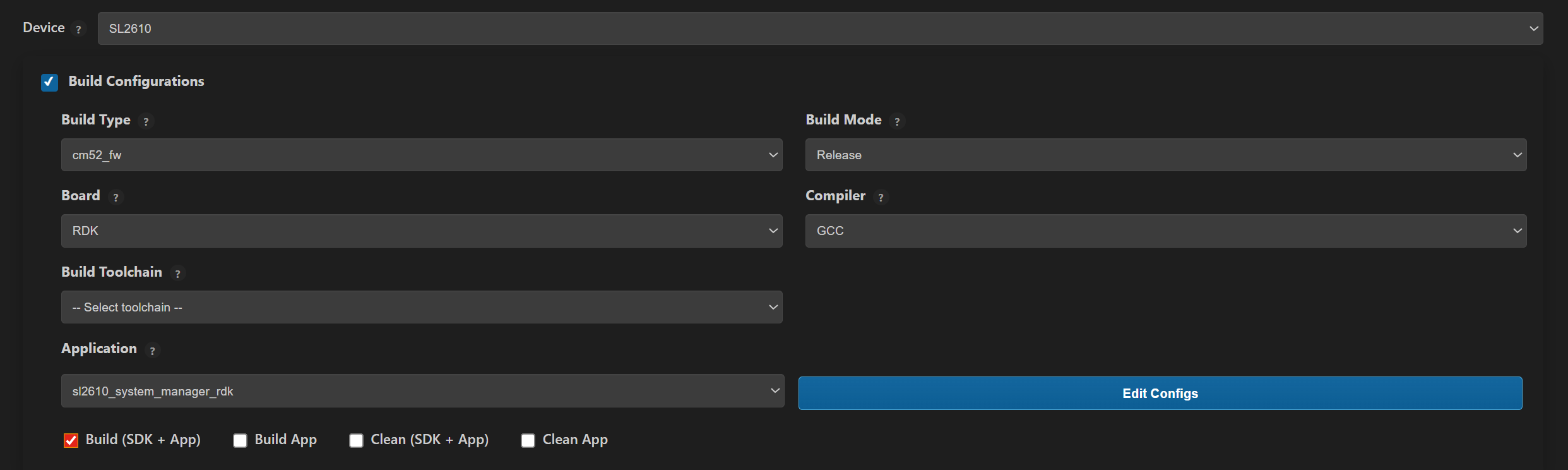
Image Generation (SL2610)
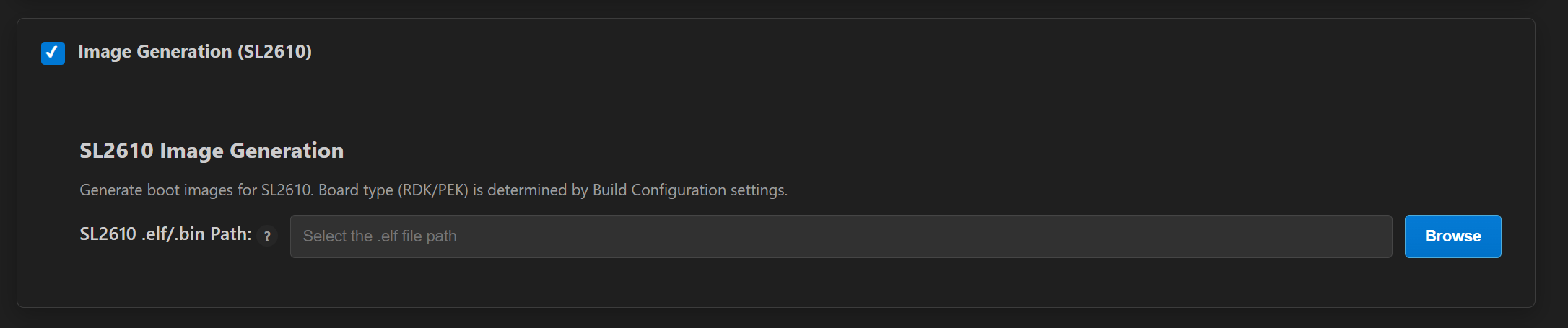
Purpose: Convert MCU executables (.elf) into System Manager sub-images.
Steps:
Build the bootloader from
<sdk-root>:make sl2610_bootloader_rdk_defconfig BOARD=SL2610_RDK make build
Check Image Generation (SL2610).
Confirm the pre-populated Release build path or use Browse to select a custom MCU executable. Note This will be automatically populated after the build completes.
Result:
The sub-image is generated at out/sl2610_cm52_fw/release/sysmgr.subimg.gz.
Note: Image Generation for SL2610 is available only on Linux platforms.
Image Flashing (SL2610)
Two supported methods:
Yocto-based flashing: Astra Yocto Linux docs
VS Code-based flashing (recommended for SL2610 development)
VS Code-Based Flashing
Before flashing, press and hold the USB_BOOT button, then press and release RESET.
If you are running WSL, please consult the Astra MCU SDK - WSL User Guide to ensure USB ports are properly handled.
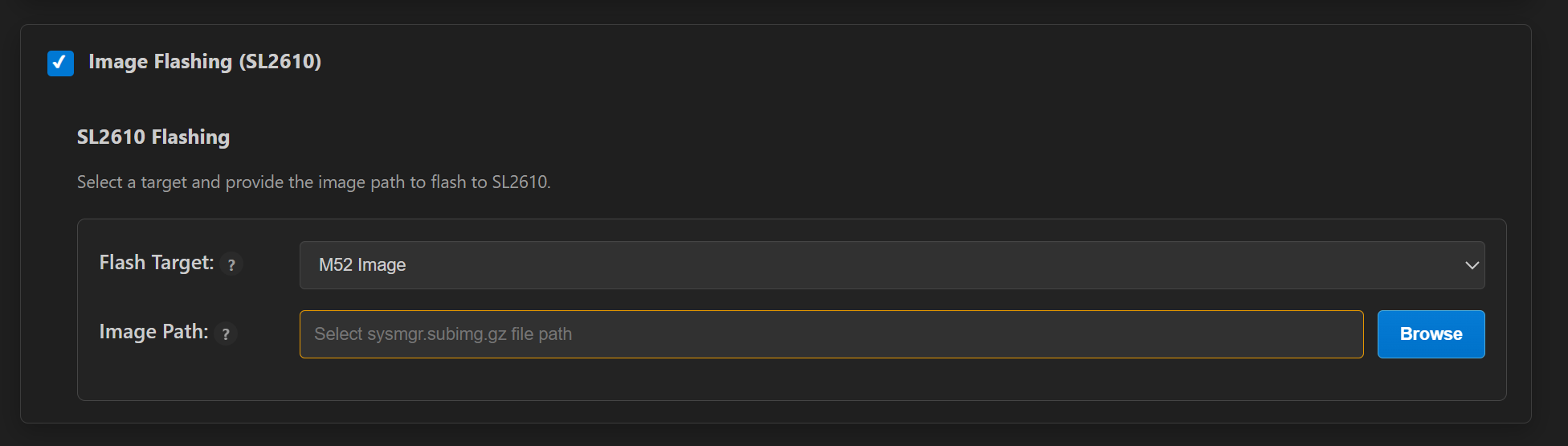
Check Image Flashing (SL2610).
Choose the target as M52 Image or Full Image in the Flash Target dropdown.
M52 Image = System Manager sub-image
Full Image = eMMC image
M52 Image requirements:
Provide the sysmgr sub-image path in the Image Flashing panel.
Use Browse to select a custom sysmgr sub-image which can be found here:
out/sl2610_cm52_fw/release/sysmgr.subimg.gzNote this will be automatically populated after image generation.
Full Image requirements:
Provide the eMMC folder path that contains
emmc_part_listandemmc_image_list. The extension uses these files to determine partitions and image order for flashing.
Debugging (SL2610)
Debugging is not yet supported in the VS Code extension for SL2610.
Running Examples
For instructions on how to run a specific example, see that example’s README.