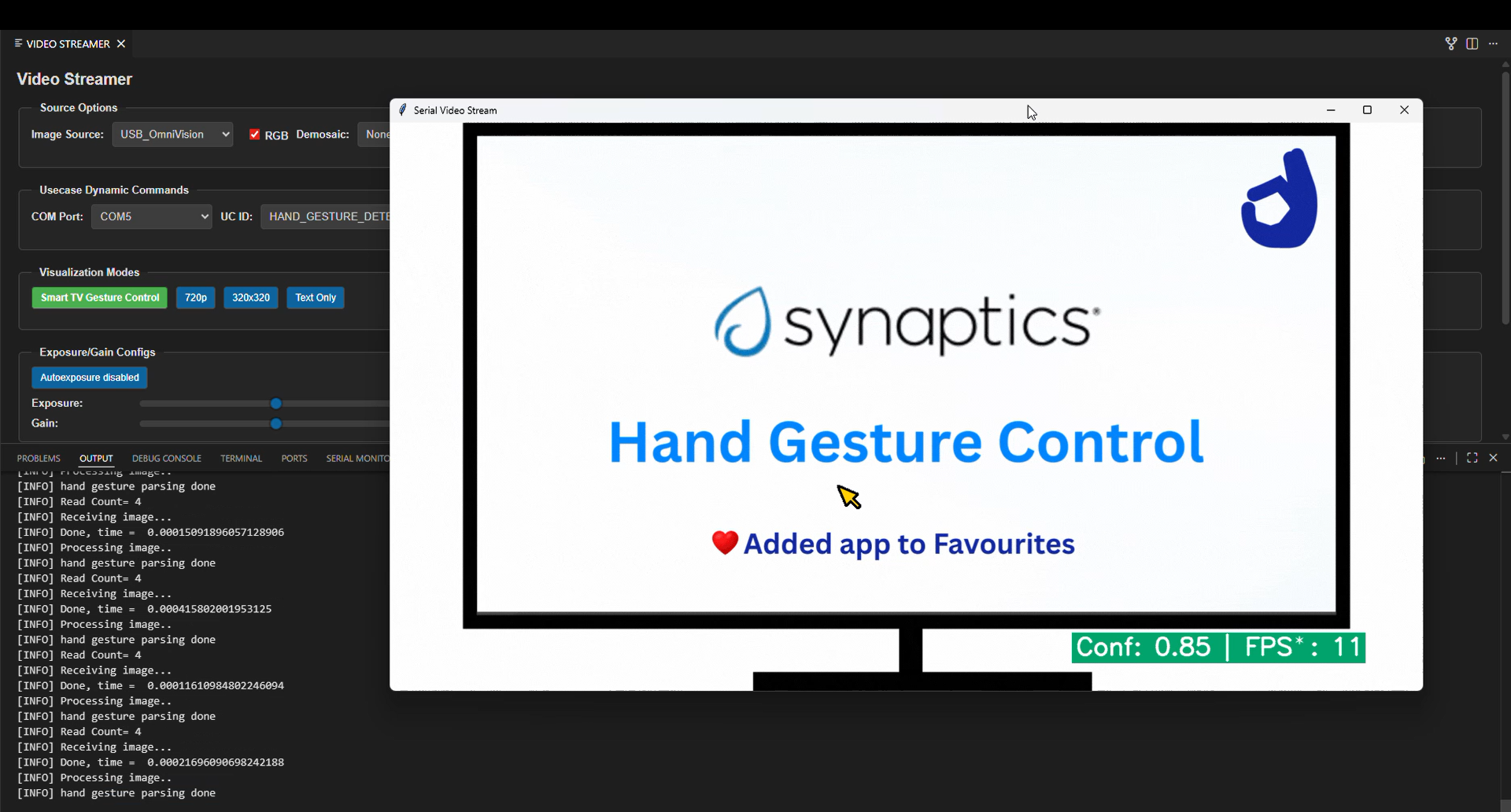
Hand Gesture Detection ML Application
Description
The Hand Gesture Detection application is an ML-based computer vision solution designed for real-time gesture recognition with hand detection, single-hand tracking, and hand key-point estimation. The application detects hands in every frame, tracks one hand across frames, identifies one key point (at the center) for each hand location, and classifies the hand pose into one of the supported gesture classes. This use case supports HD resolution.
The latest example structure uses a common application source tree with board-specific hardware setup kept under hw/<BOARD>/. For this app:
Common application sources such as
main.c,uc_hand_gesture_detection.c, anduc_hand_gesture_detection.hstay in the app root.Application defconfigs are stored under
configs/.Board and hardware-specific setup is selected from
hw/<BOARD>/, for examplehw/SR110_RDK/.
The application can also be exported and built as a standalone app repository. In that flow, keep this app in its own directory, point SRSDK_DIR to the SDK root, and build from the app directory itself. For the full application workflow model, see Astra MCU SDK User Guide.
Supported Boards
This application supports:
SR110_RDK
Select the defconfig that matches your target board, and the build system will pick the corresponding board-specific hardware setup from hw/<BOARD>/.
Prerequisites
Choose one setup path:
Hardware Requirements
Astra Machina Micro kit - SR110
OV5647 Camera Sensor
Note: The OV5647 camera sensor is not included with the Astra Machina Micro kit and must be procured separately. For part details and procurement options, reach out to Synaptics on the OV5647 part details.
Connecting the Sensor
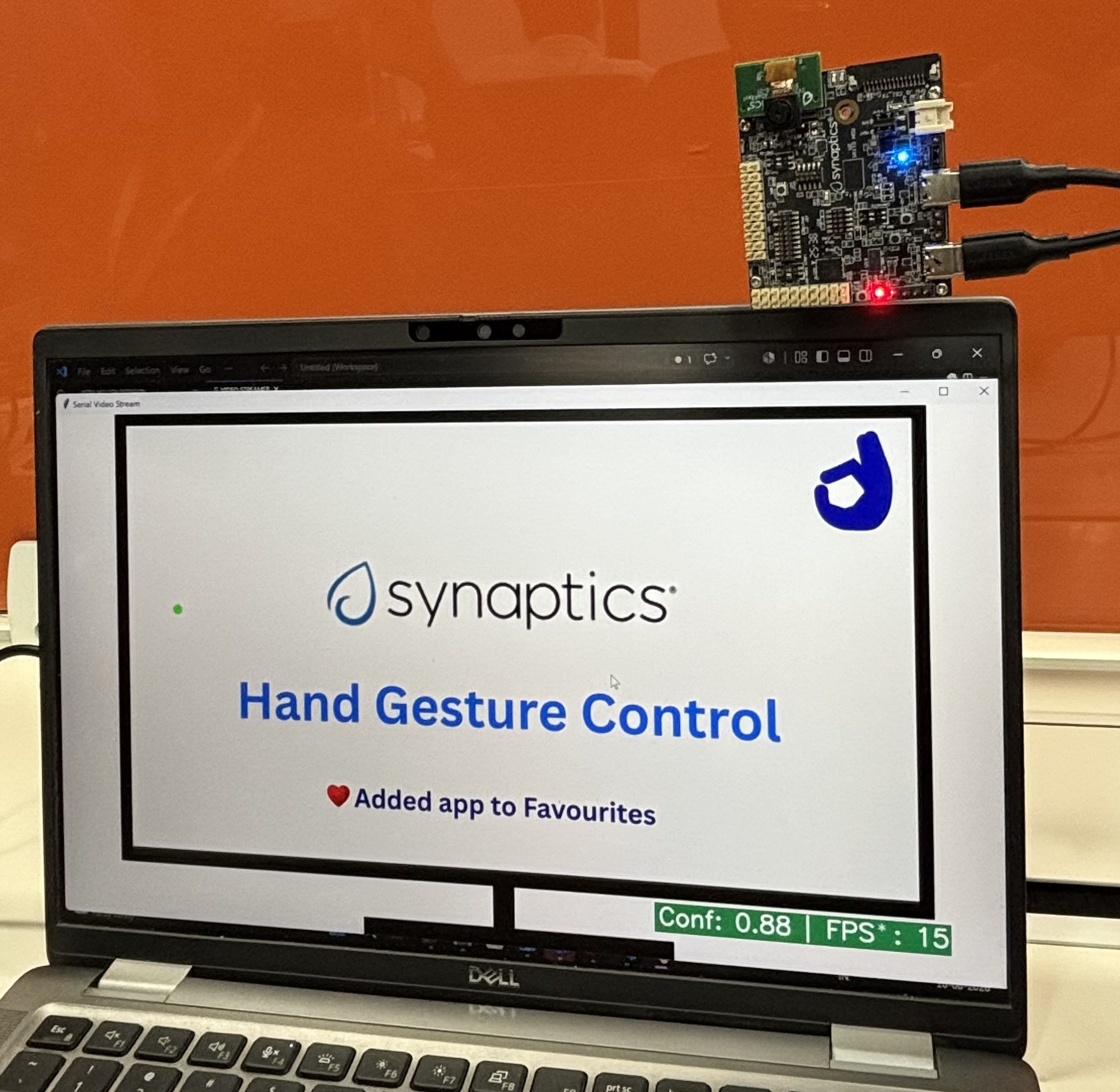
Insert the OV5647 sensor into the J23 port on the SR110 RDK kit.
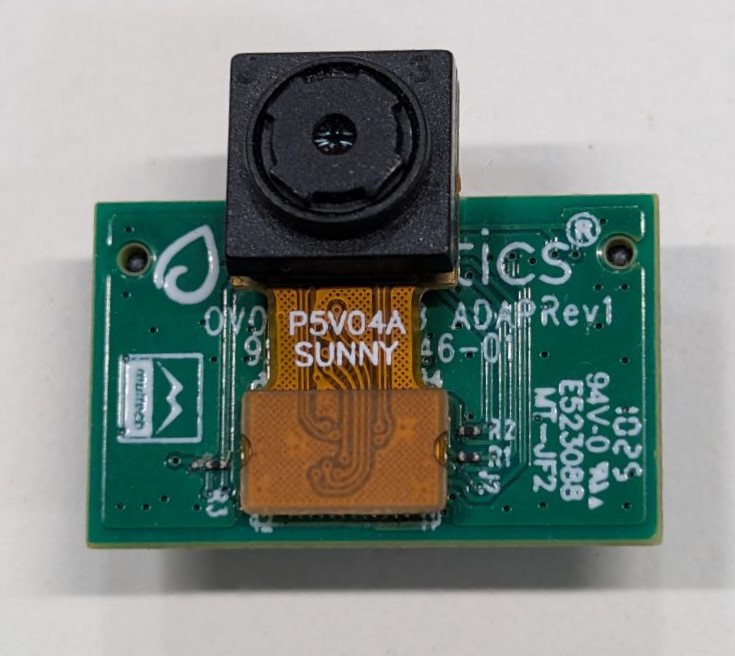
Make sure the sensor is mounted in the correct orientation. Refer to the picture below for the correct orientation.
Project Configuration Selection
Before building, choose the project configuration (defconfig) that matches both your target board and the transfer mode you want to validate.
You can:
Select the required defconfig directly from the application’s
configs/directory.Run
make list_defconfigsfrom the application directory to list all supported defconfigs.
Available defconfigs:
sr110_rdk_cm55_hand_gesture_detection_defconfig
Building and Flashing the Example using VS Code and CLI
Use the VS Code flow described in the SR110 guide and the VS Code Extension guide:
Build (VS Code):
Open Build and Deploy -> Build Configurations.
Select the hand_gesture_detection project configuration in the Project Configuration dropdown.
Build with Build (SDK+Project) for the first build, or Build (Project) for rebuilds.
Build (CLI):
Build from the application directory itself:
cd <sdk-root>/examples/vision_examples/uc_hand_gesture_detection
export SRSDK_DIR=<sdk-root>
make <app_defconfig> BUILD=SRSDK
For faster rebuilds when only app code changes, reuse the app-local installed SDK package:
cd <sdk-root>/examples/vision_examples/uc_hand_gesture_detection
export SRSDK_DIR=<sdk-root>
make build
If this app has been exported to its own repository, use the same commands from that exported app directory after setting
SRSDK_DIRto the SDK root.
Build outputs (CLI):
Application binary:
<app-dir>/out/<target>/release/<target>.elfApp-local SDK package:
<app-dir>/install/<BOARD>/<BUILD_TYPE>/
Flash (VS Code):
Use Image Conversion to generate the flash image.
In Image Conversion, open Advanced Configurations and edit
NVM_data.json.Set model flash offsets in
NVM_data.json:image_offset_Model_A_offset:00607000image_offset_Model_B_offset:00737000
In Image Flashing (SWD/JTAG), flash the model binaries first:
hand_gesture_detection_flash(1280x704).binat0x607000hand_gesture_detection_flash(320x320).binat0x737000
Flash the generated firmware image (
B0_flash_full_image_GD25LE128_67Mhz_secured.bin).
Flash (CLI):
Activate the SDK venv (required for image generation tools):
# Linux/macOS
source <sdk-root>/.venv/bin/activate
# Windows PowerShell
.\.venv\Scripts\Activate.ps1
Generate the flash image:
cd <sdk-root>/tools/srsdk_image_generator
python srsdk_image_generator.py \
  -B0 \
  -flash_image \
  -sdk_secured \
  -spk "<sdk-root>/tools/srsdk_image_generator/Inputs/spk_rc4_1_0_secure_otpk.bin" \
  -apbl "<sdk-root>/tools/srsdk_image_generator/Inputs/sr100_b0_bootloader_ver_0x012F_ASIC.axf" \
  -m55_image "<sdk-root>/examples/vision_examples/uc_hand_gesture_detection/out/sr110_cm55_fw/release/sr110_cm55_fw.elf" \
  -flash_type "GD25LE128" \
  -flash_freq "67"
Flash model binaries first:
cd <sdk-root>
python tools/openocd/scripts/flash_xspi_tcl.py \
  --cfg_path tools/openocd/configs/sr110_m55.cfg \
  --image examples/vision_examples/uc_hand_gesture_detection/models/hand_gesture_detection_flash(1280x704).bin \
  --flash-offset 0x607000

python tools/openocd/scripts/flash_xspi_tcl.py \
  --cfg_path tools/openocd/configs/sr110_m55.cfg \
  --image examples/vision_examples/uc_hand_gesture_detection/models/hand_gesture_detection_flash(320x320).bin \
  --flash-offset 0x737000
Flash the firmware image:
cd <sdk-root>
python tools/openocd/scripts/flash_xspi_tcl.py \
  --cfg_path tools/openocd/configs/sr110_m55.cfg \
  --image tools/srsdk_image_generator/Output/B0_Flash/B0_flash_full_image_GD25LE128_67Mhz_secured.bin \
  --erase-all
Running the Application using VS Code Extension
Windows note: Ensure the USB drivers are installed for streaming. See the Zadig steps in
SR110 Build and Flash with VS Code.
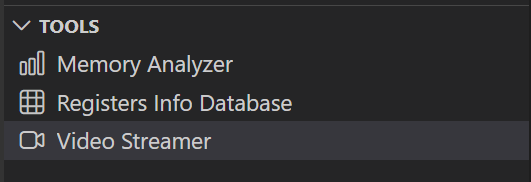
In VS Code, open Video Streamer from the Synaptics sidebar.
For logging output, click SERIAL MONITOR and connect to the DAP logger port on J14.
To make it easier to identify, ensure only J14 is plugged in (not J13).
The logger port is not guaranteed to be consistent across OSes. As a starting point:
Windows: try the lower-numbered J14 COM port first.
Linux/macOS: try the higher-numbered J14 port first.
If you do not see logs after a reset, switch to the other J14 port.
In the Video Streamer dropdown, select the J13 COM port.
Plug in J13 and press RESET on the board.
Windows: select the newly enumerated COM port.
Linux/macOS: select the lower-numbered COM port of the two newly enumerated ports.
Use the Video Streamer controls:
a. Select HAND_GESTURE_DETECTION from the UC ID dropdown.
b. Set RGB Demosaic to BayerGBRG.
c. Click Create Use Case.
d. Click Start Use Case (a Python window opens and the video stream appears).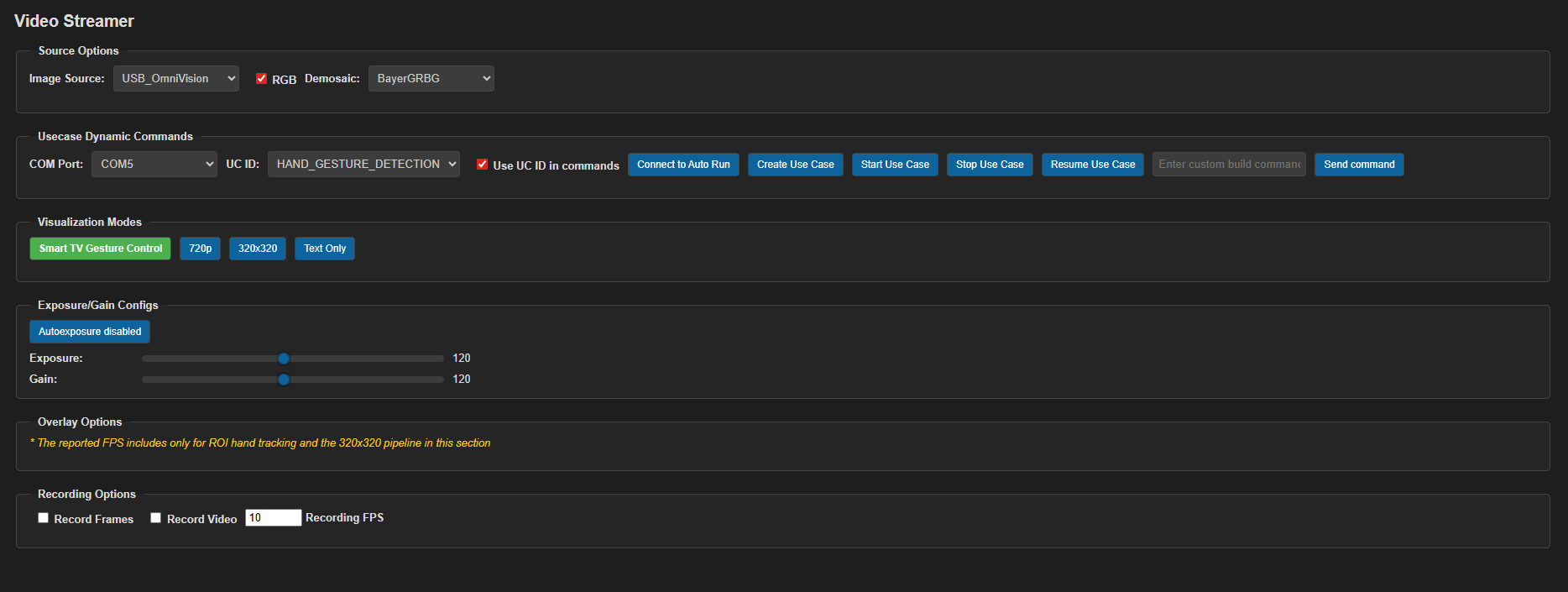
For logs, use the LOGGER tab when needed.
Change Visualization Modes as needed:
Smart TV Gesture Control
720p
320x320
Text only
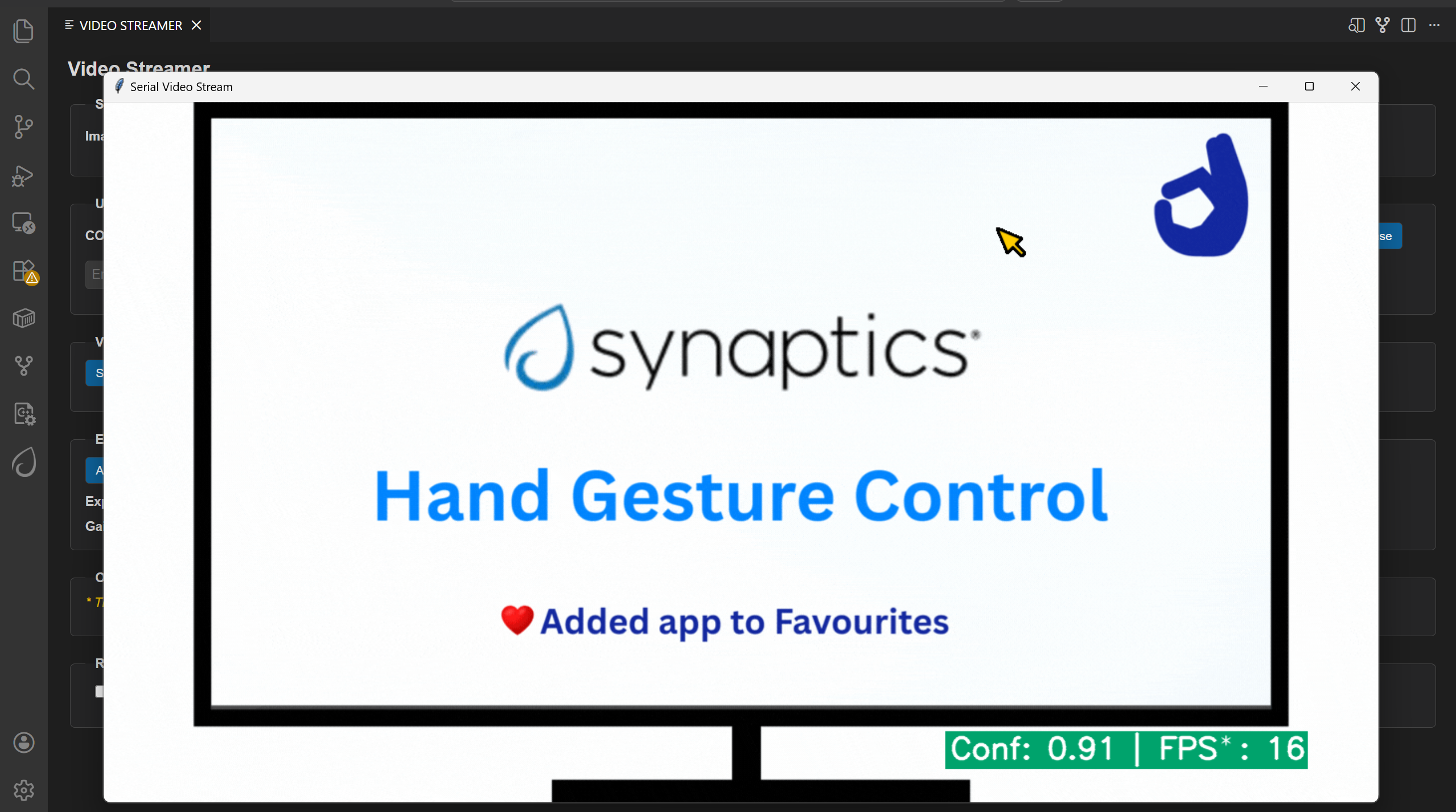
Autorun use cases: If autorun is enabled, click Connect Image Source to open the video stream pop-up.
Supported Hand Gestures
The following hand gestures are supported:
Gesture |
Description |
|---|---|
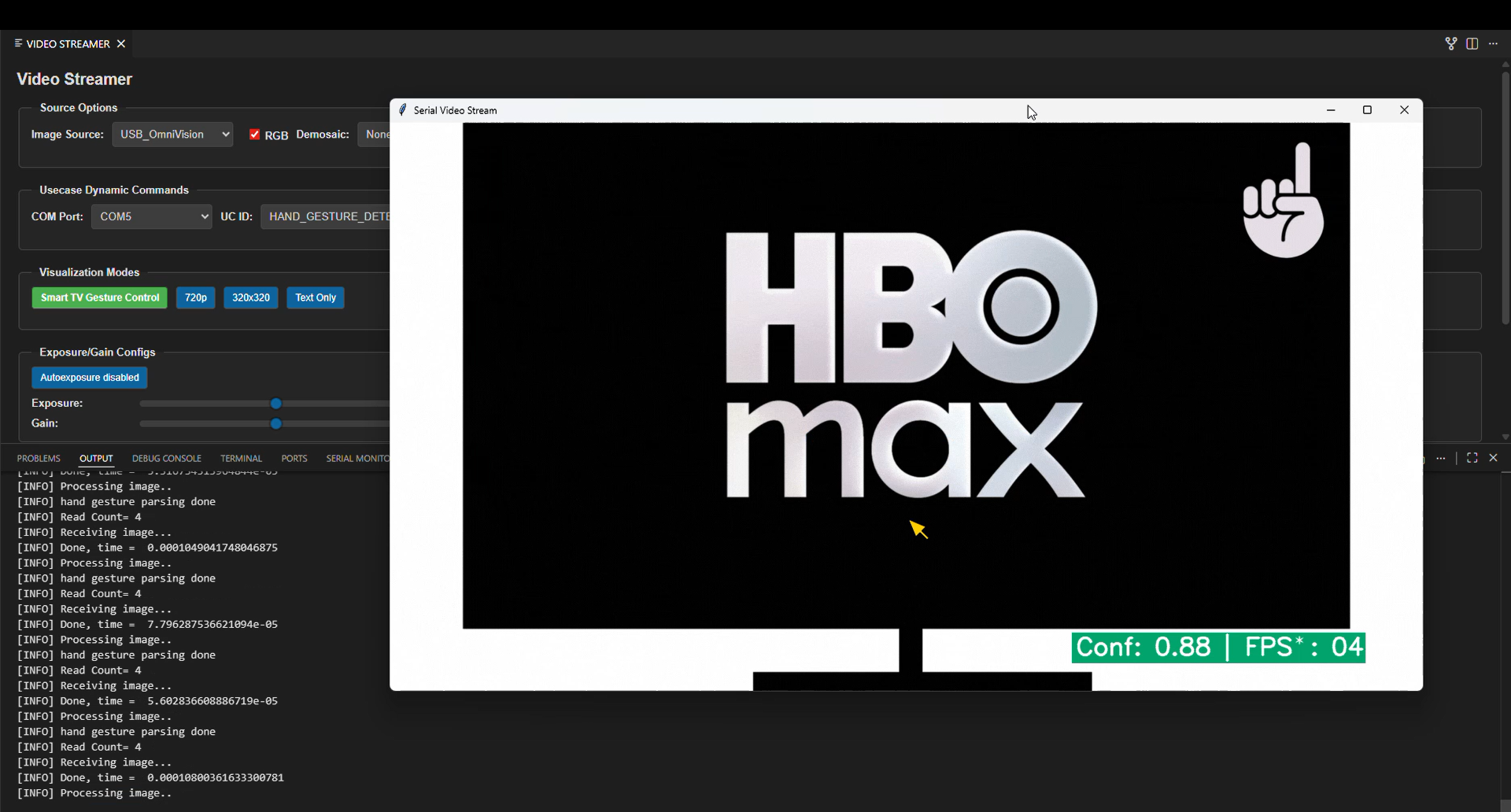
One |
One finger raised (index finger). |
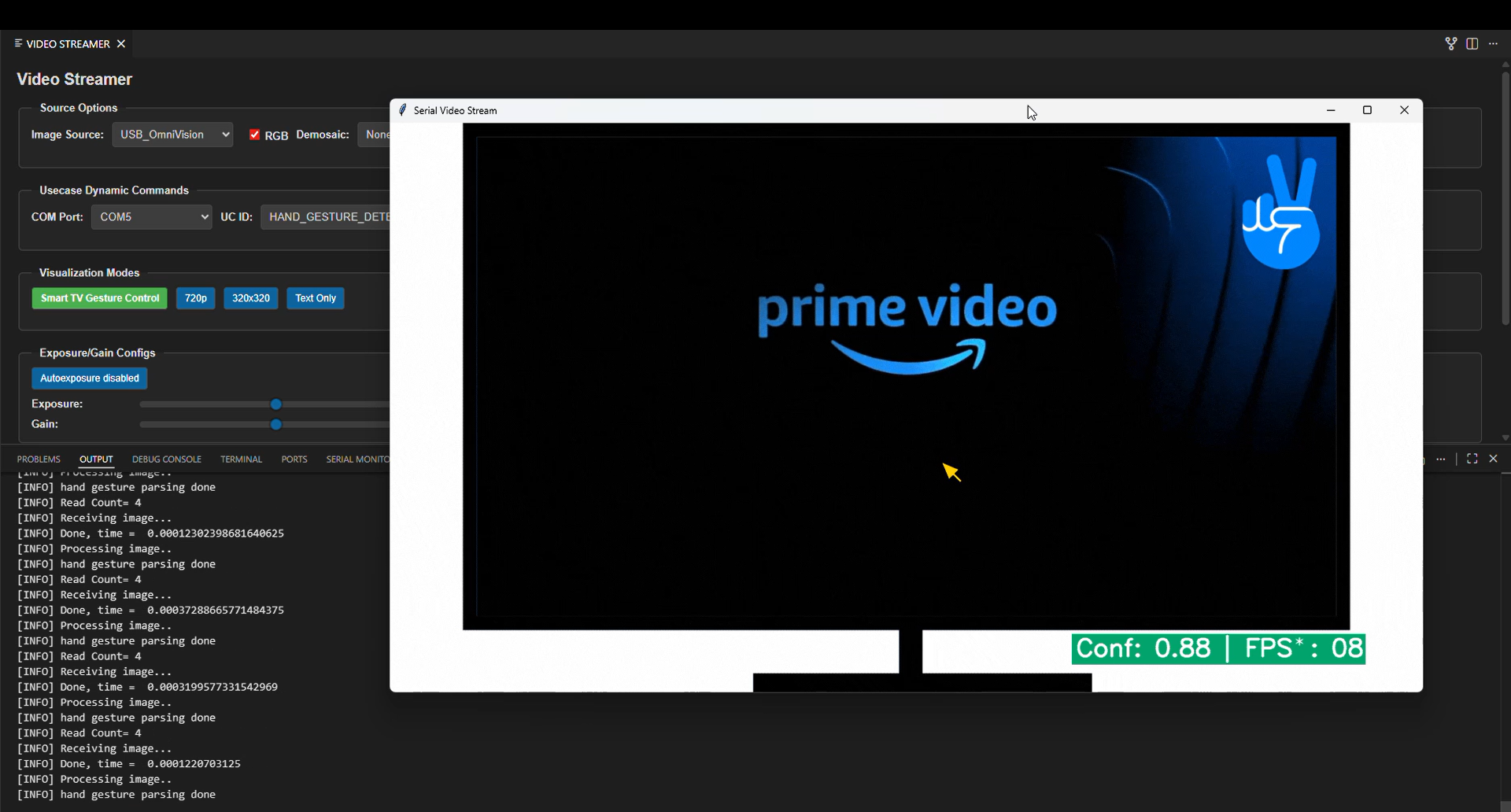
Two |
Two fingers raised. |
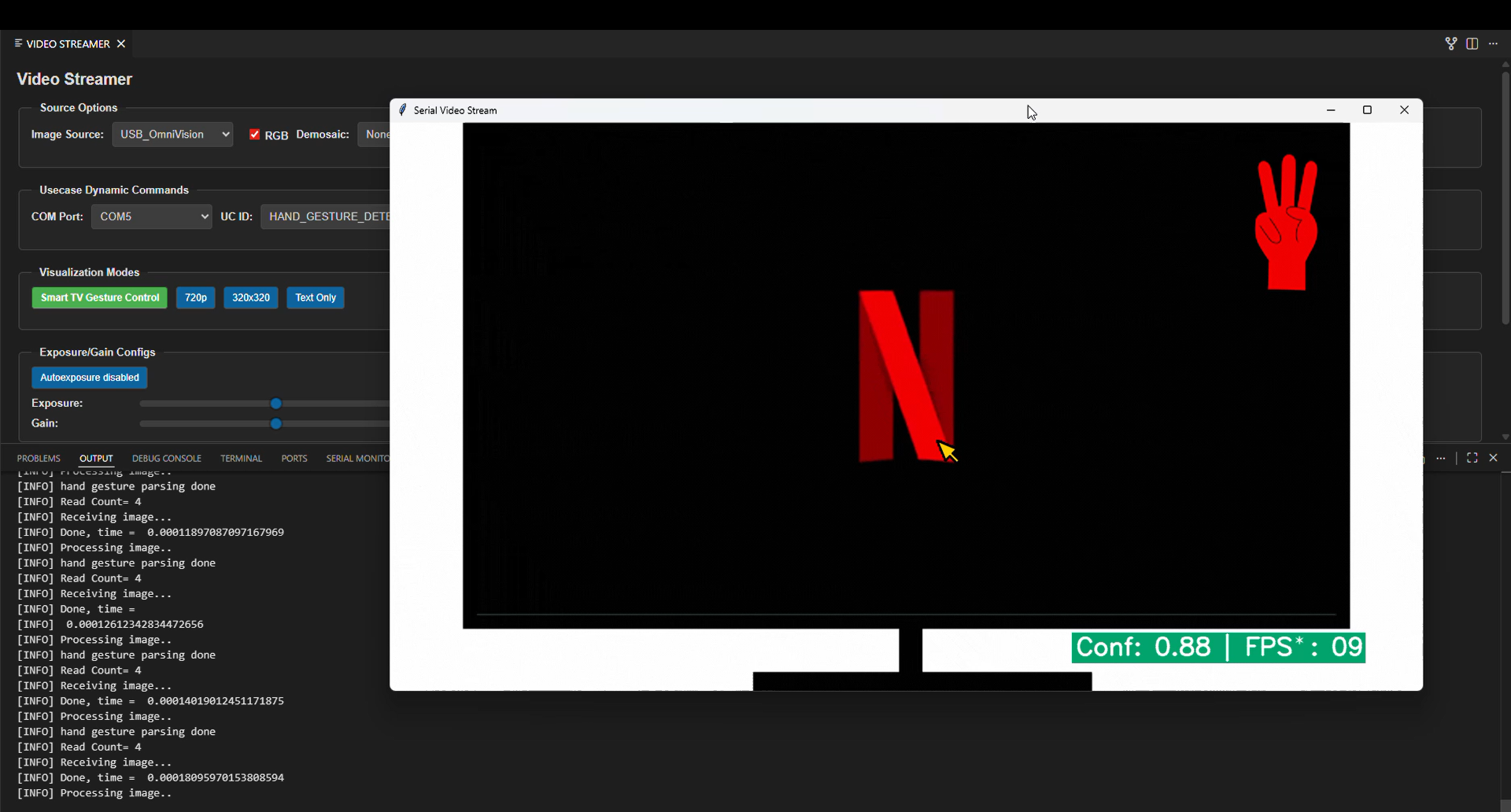
Three |
Three fingers raised. |
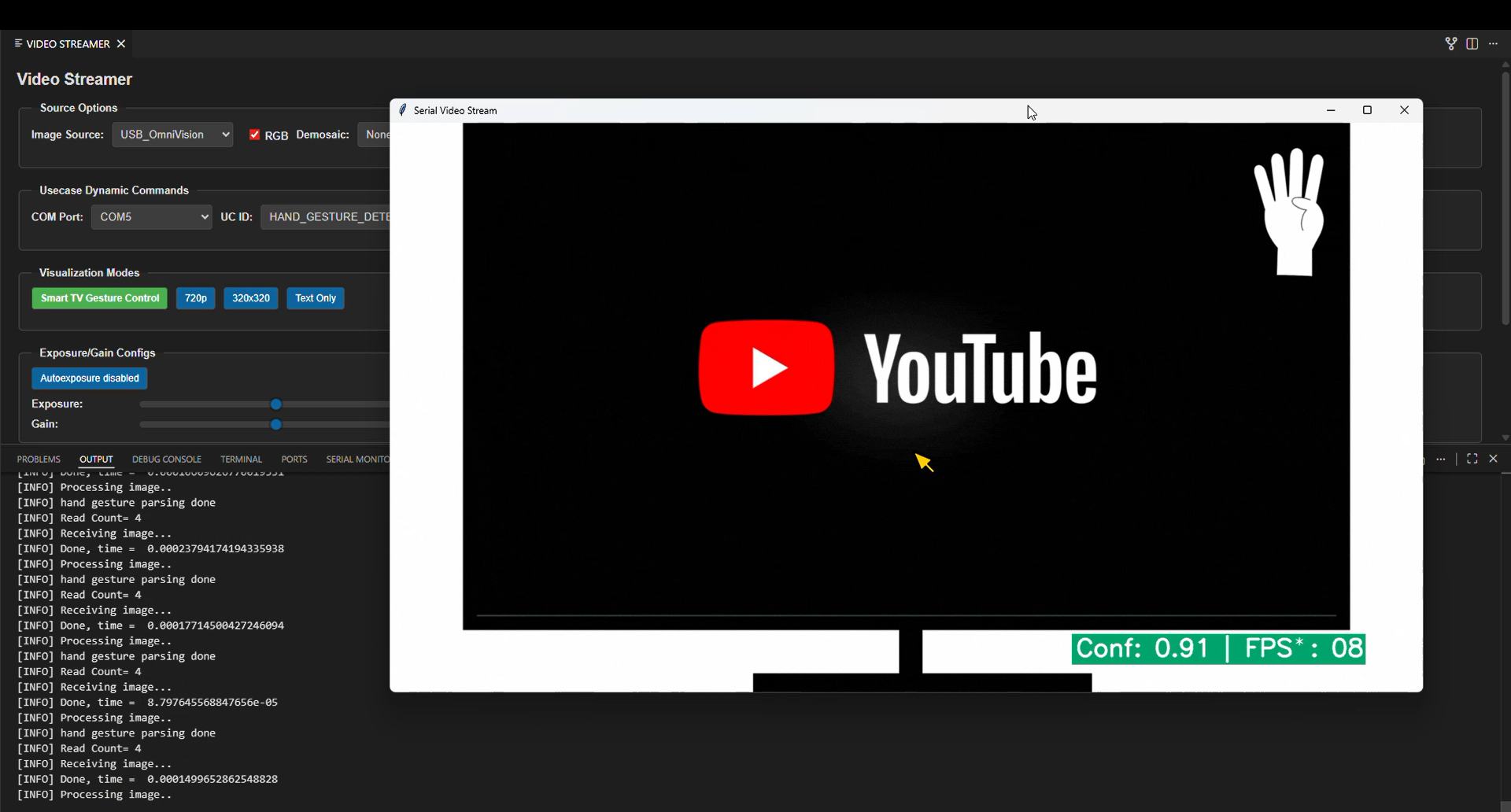
Four |
Four fingers raised. |
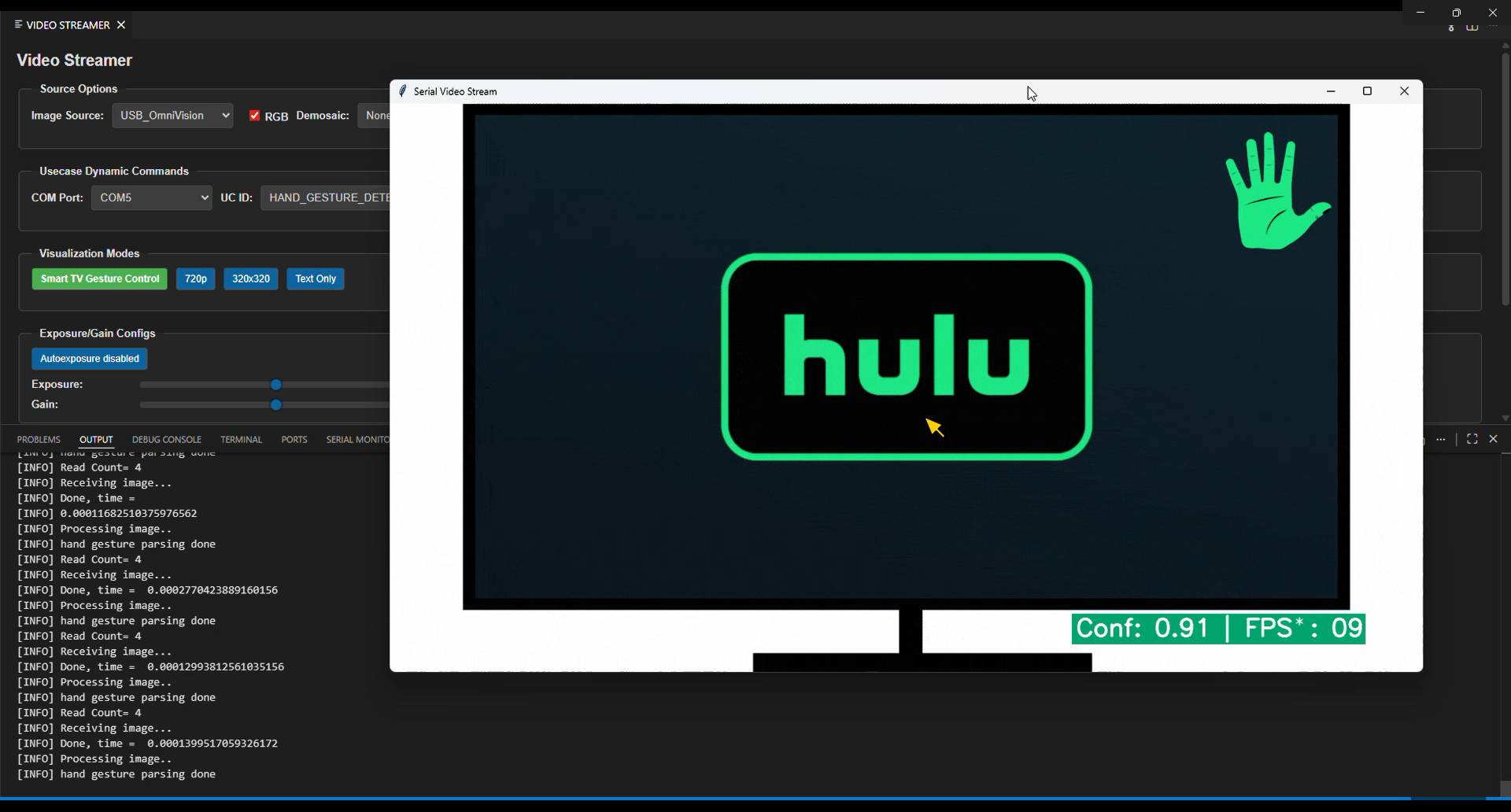
Palm |
Open palm with five fingers raised and slightly spread apart. |
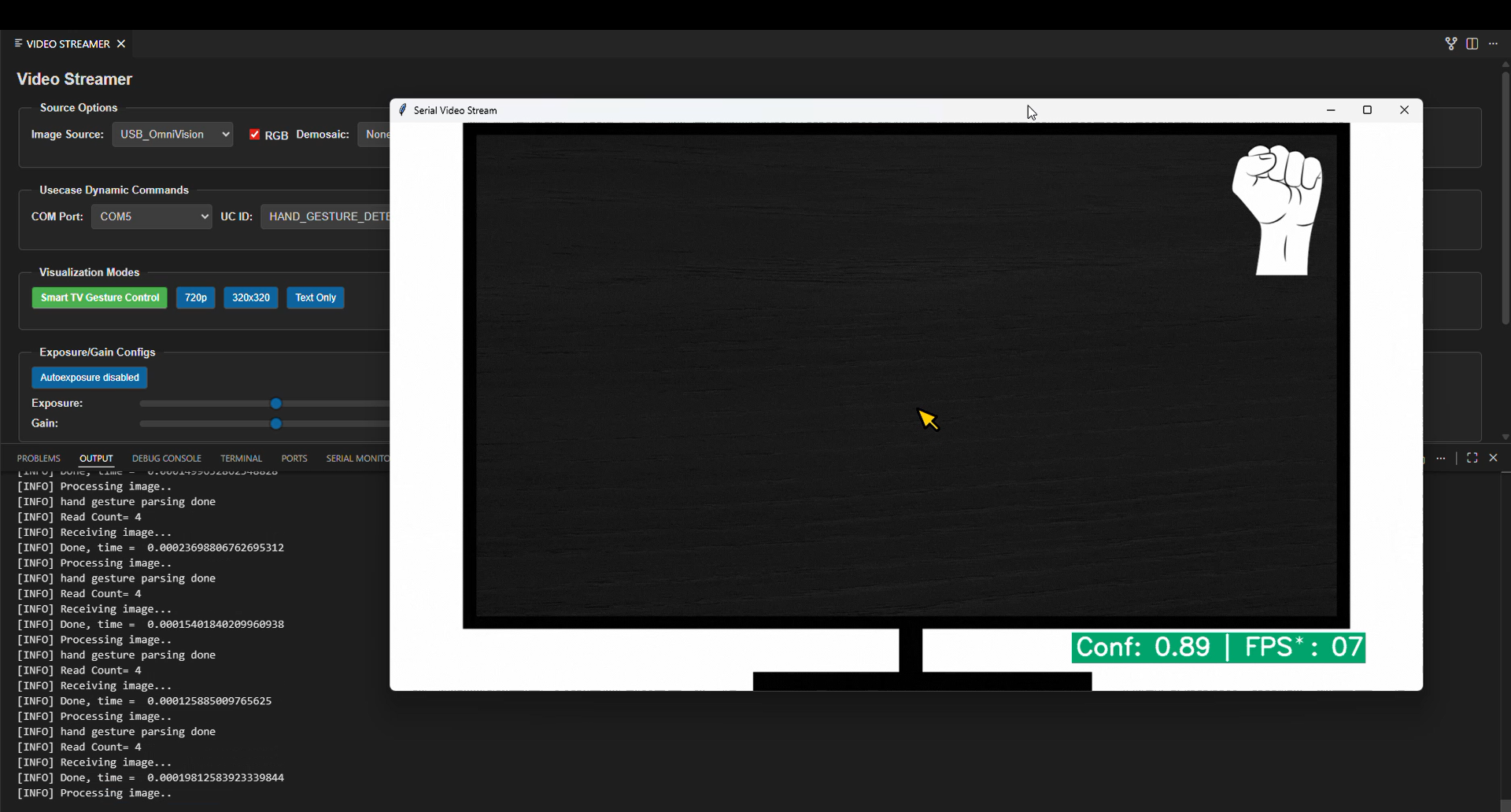
Fist |
Closed fist with fingers folded inward. |
Thumbs Up |
Thumb raised upward with other fingers folded. |
Thumbs Down |
Thumb pointed downward with other fingers folded. |
Pinch |
Thumb and index finger brought close together (pinching pose). |
Note: For the Palm gesture, keep your fingers slightly spread apart, not pressed together. A flat palm with the fingers held tightly together may not be detected reliably.
Gesture one
Gesture two
Gesture Three
Gesture four
Gesture palm
Gesture fist
Gesture Thumbs Up
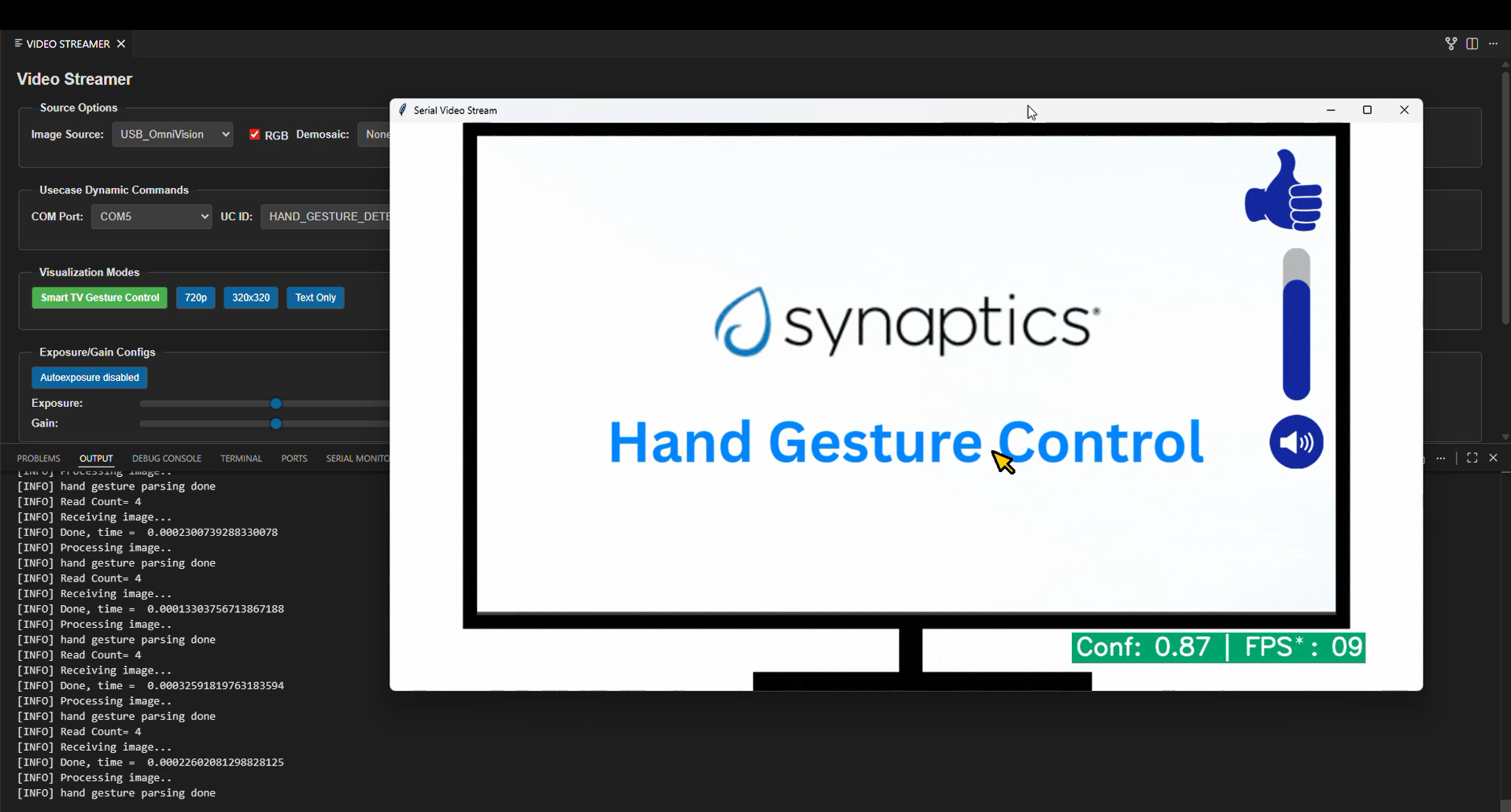
Gesture Thumbs Down
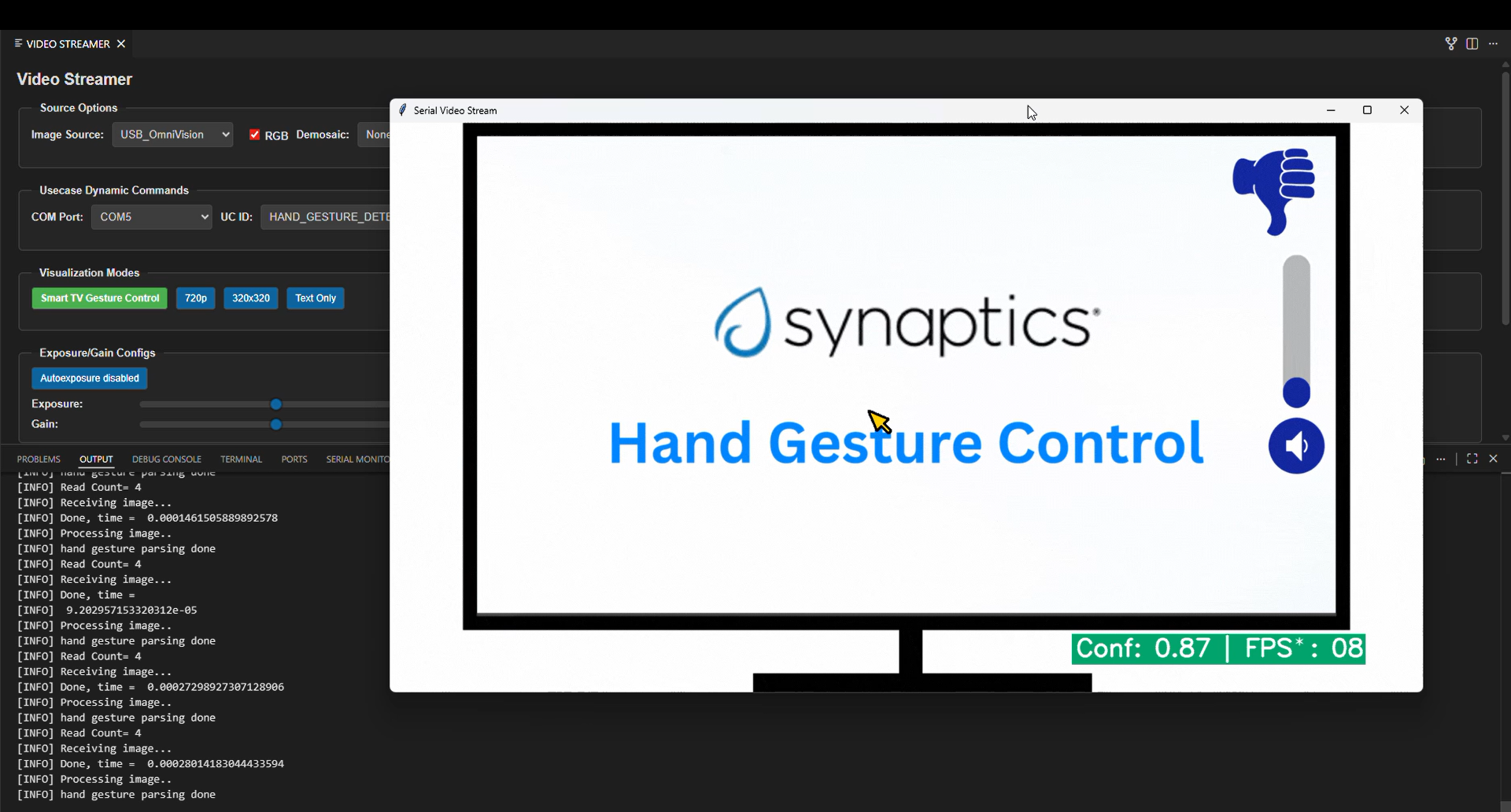
Gesture Pinch